AI sidebar
The AI sidebar is a chat built into Locus. It can draw and change constructions, compute with the CAS, and look at the graphics view. It works in the desktop apps and the web app.
Setting it up
Section titled “Setting it up”- Set up a model with Settings > AI features > General > Set up AI. See Model providers.
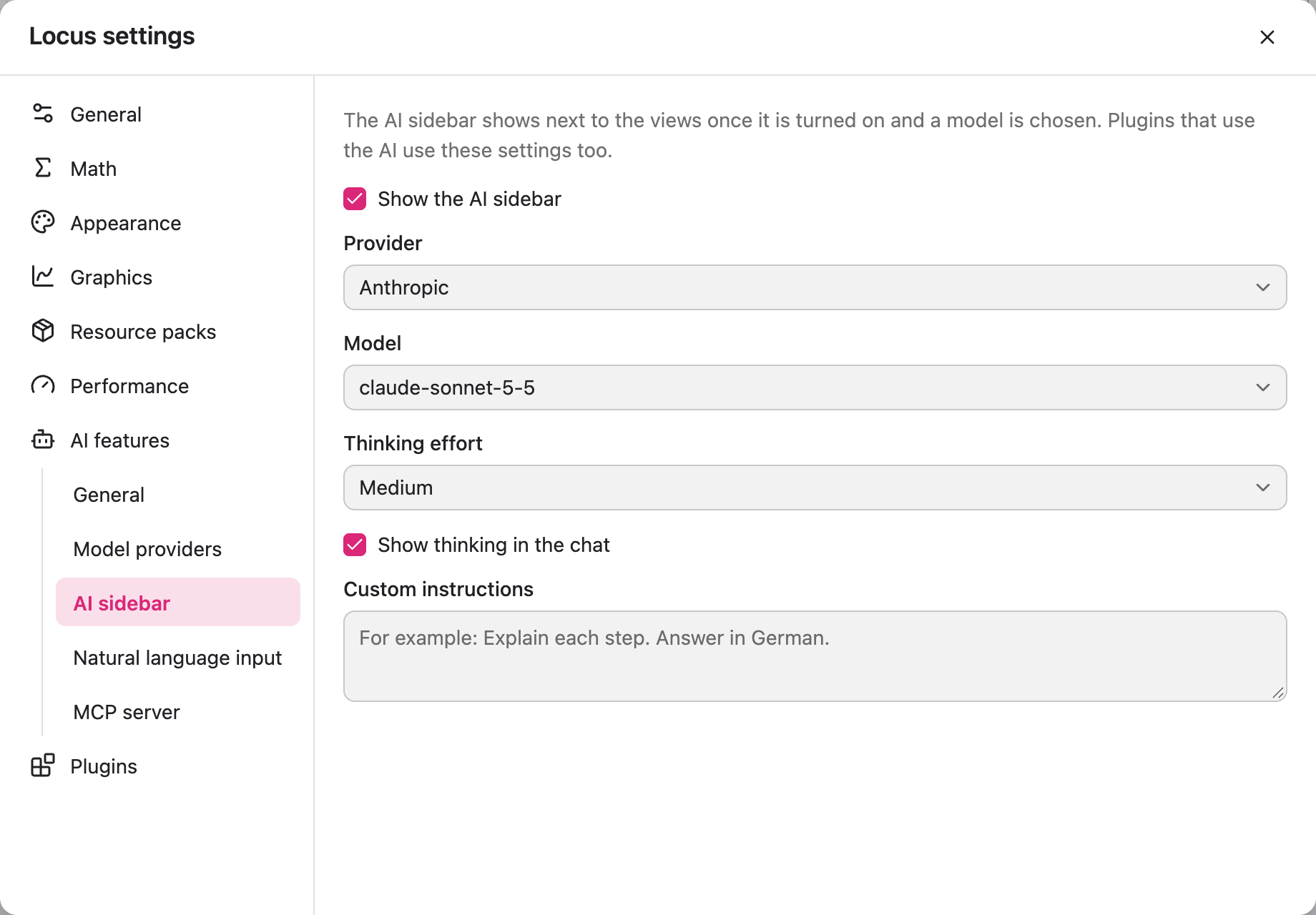
- Open Settings > AI features > AI sidebar.
- Turn on Show the AI sidebar.
The sidebar then shows up in the app. In Locus Classic it is the chat button in the toolbar. In Locus Suite it is the AI sidebar tab on the left.
Using it
Section titled “Using it”Type a message, for example “Draw a triangle with a right angle at C” or “Find the intersections of f and g”. The AI changes the construction directly. Each step it takes shows up in the chat, such as Ran … or Looked at the Graphics view.
The AI can:
- run any command from the input bar
- read the objects in the construction and their values
- compute with the CAS without changing the construction
- show or hide views and move the visible area of the graphics view
- look at the graphics view
How well this works depends on the model. Models need to support tool use, and looking at images needs a model that supports images.
Click New chat to start over. The chat stays when you switch to another app in the same window. It is not saved when you close the window.
Images and the camera
Section titled “Images and the camera”Click the paperclip to attach images. The Camera tab takes a picture, for example of a worksheet, and attaches it to your next message. Click Capture or press any key.
Settings
Section titled “Settings”| Setting | Description |
|---|---|
| Provider | The provider whose model the sidebar uses, from the providers you added |
| Model | For Anthropic: Claude Haiku 5.5, Claude Sonnet 5.5 (default), Claude Opus 5.5 or Claude Fable 5.1. For other providers, the models the provider offers. |
| Thinking effort | How long the model thinks before answering. Anthropic models go from Low to Max, default Medium. Other providers have Low, Medium and High, or the model’s default. |
| Show thinking in the chat | Shows the model’s reasoning above each answer, if the provider sends it |
| Custom instructions | Added to every chat, for example “Explain each step. Answer in German.” |
Natural language input and plugins that use the AI use these settings too.
The AI sidebar is turned off during exams, unless a plugin made for exams allows it.