Model providers
The AI features of Locus use a model from a provider of your choice, with your own API key. You pay the provider for what you use. Locus itself does not charge anything.
Setting up AI
Section titled “Setting up AI”- Open Settings > AI features > General.
- Click Set up AI.
- Choose a provider.
- Paste your API key and click Next. Locus checks that the key works before it saves it.
- Choose a model and click Use this model.
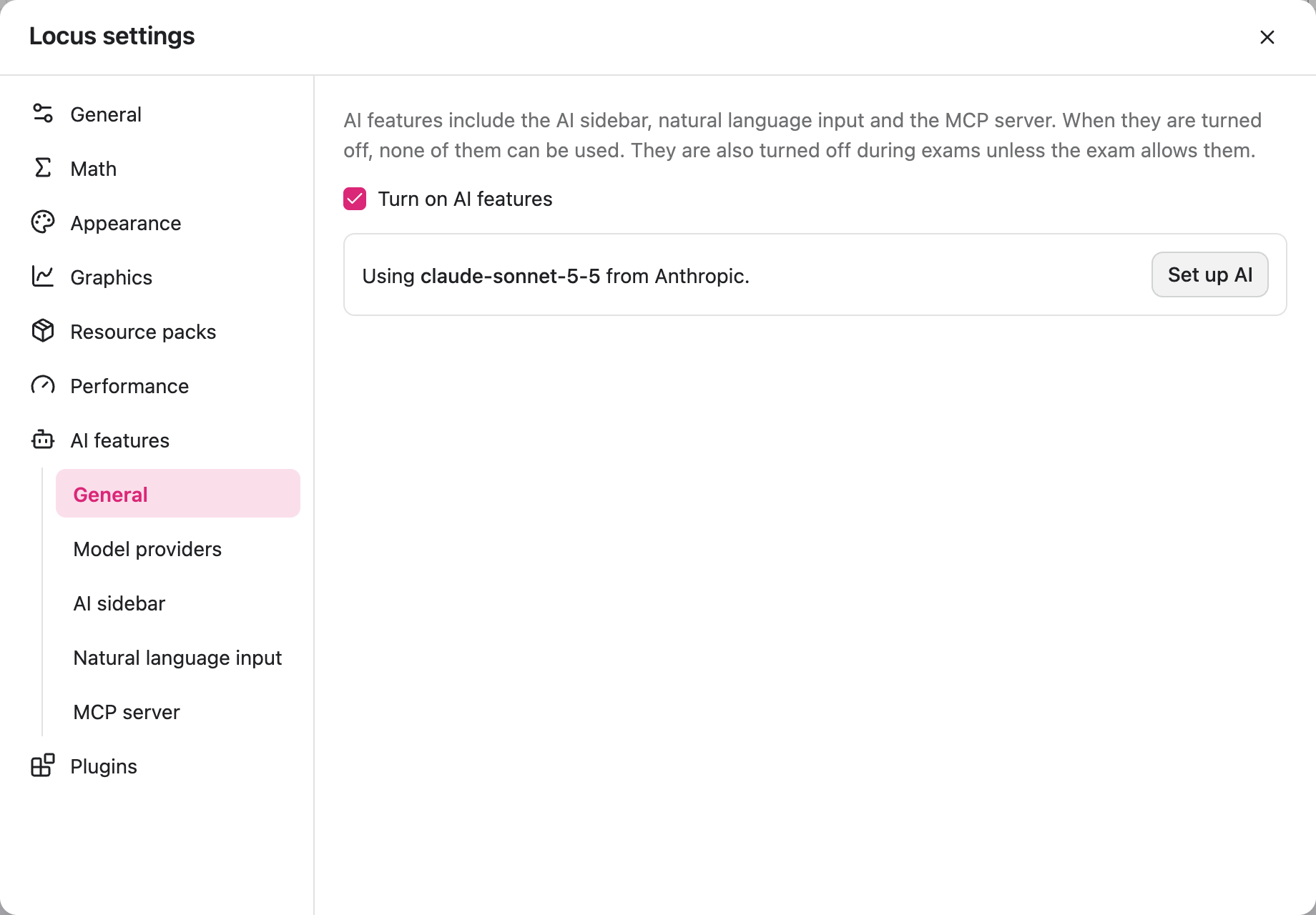
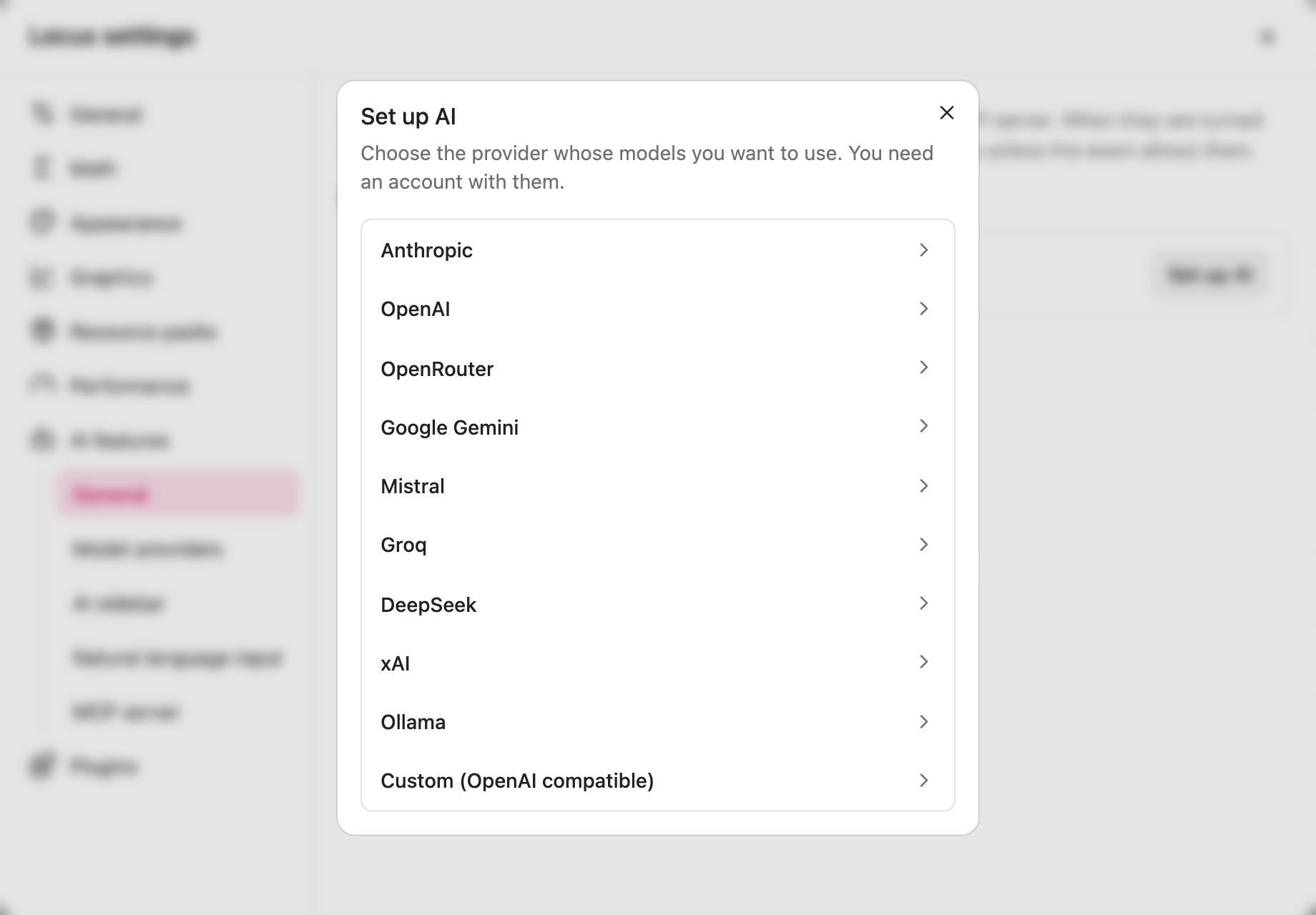
The AI sidebar and natural language input then use this model. You can change the model later under AI sidebar.
Turning AI features on or off
Section titled “Turning AI features on or off”Turn on AI features under General controls everything at once. When it is off, the AI sidebar is hidden, natural language input does nothing and the MCP server stops.
Supported providers
Section titled “Supported providers”| Provider | Where to get a key |
|---|---|
| Anthropic | Anthropic Console |
| OpenAI | OpenAI Platform |
| OpenRouter | OpenRouter |
| Google Gemini | Google AI Studio |
| Mistral | Mistral Console |
| Groq | Groq Console |
| DeepSeek | DeepSeek Platform |
| xAI | xAI Console |
| Ollama | No key needed. Runs models on your own computer. |
| Custom | Any service with an OpenAI compatible API. Enter its base URL and, if needed, a key. |
Managing providers
Section titled “Managing providers”Settings > AI features > Model providers lists the providers you added. Click Add provider… to add another one, Change to enter a new key or base URL, or Remove to delete a provider and its key.
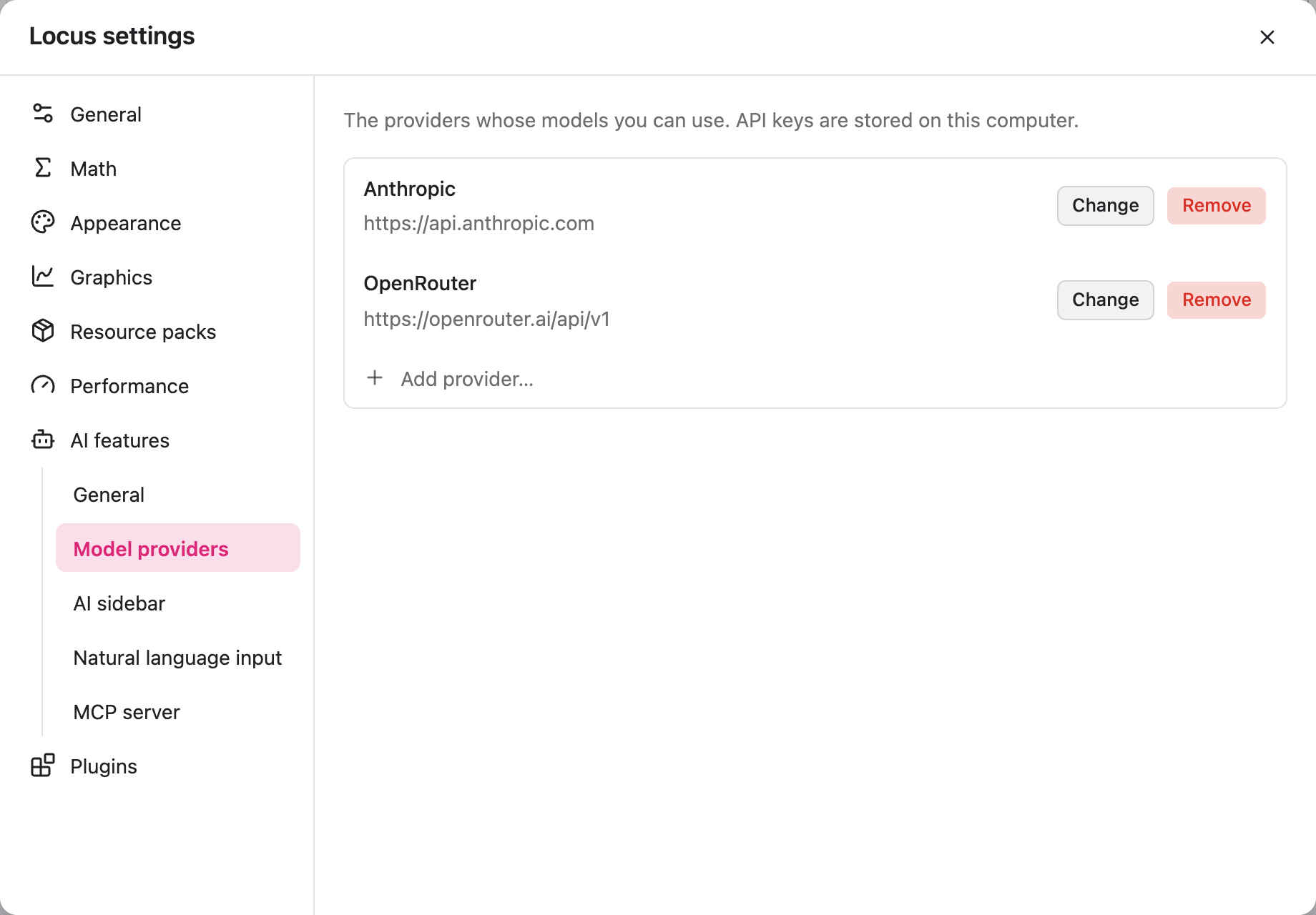
Base URL is the address of the API. Only change it if you use a proxy or run the service yourself. Leave it empty to use the default.
Keys are stored on your computer. In the web app they are stored in your browser.