Opening and saving files
Locus uses the same file format as GeoGebra. You can open your existing GeoGebra files in Locus, and files saved in Locus open in GeoGebra.
Opening files
Section titled “Opening files”Open the menu in the top right corner and choose Open.
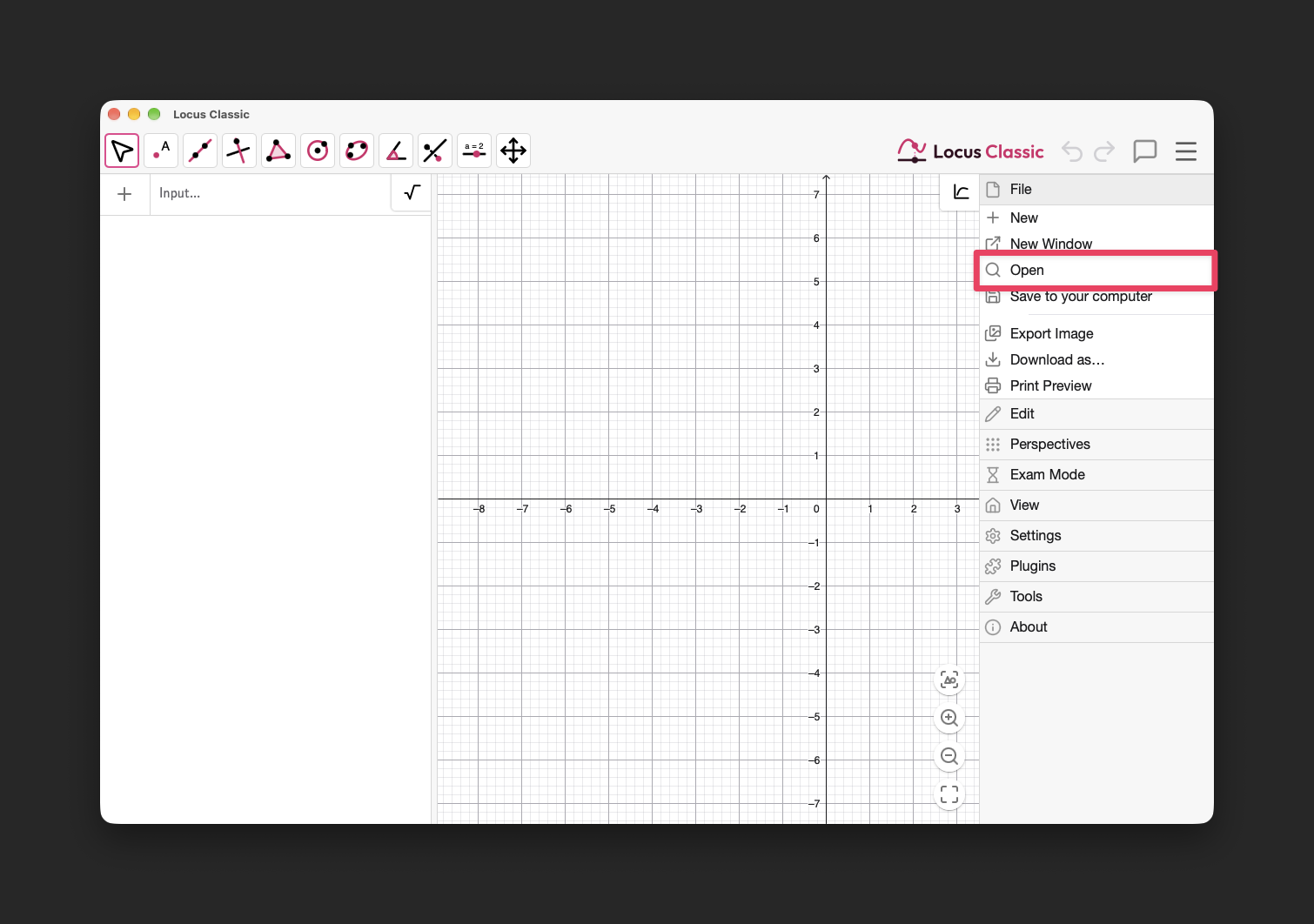
Locus opens these file types:
| Extension | Content |
|---|---|
.ggb |
Constructions |
.ggt |
Custom tools |
.ggs |
Whiteboard slides |
.csv |
Spreadsheet data |
.off |
3D models |
.pdf |
PDF documents, in the whiteboard |
Double-clicking a file in Finder or File Explorer does not open it in Locus yet. Use Open in Locus instead.
Saving files
Section titled “Saving files”Choose Save to your computer in the menu. Locus asks where to save the file.
Locus does not save automatically. When you close a window with unsaved changes, Locus asks whether to save first. You can turn this off in Settings > General > Ask to save before closing a window.
Exporting
Section titled “Exporting”Download as… in the menu saves your work in other formats:
- Most apps: PNG, SVG, PDF and 3D print (
.stl) - 3D: PNG,
.stland Collada (.daeand.html) - Whiteboard: slides (
.ggs), PNG, SVG and PDF
Locus Classic can also export to PSTricks, PGF/TikZ and Asymptote, and save the construction protocol as HTML.
Windows
Section titled “Windows”To open a new window, press Cmd+N (macOS) or Ctrl+N (Windows) for Locus Classic, or Cmd+Shift+N / Ctrl+Shift+N for Locus Suite.
Settings > General > Open on launch sets what Locus opens when it starts: the windows from last time, or a specific app. Locus remembers which apps were open, not their content.